OpenTodo in practice · Part 14

An assistant that asks first

From OpenTodo 1.4, the assistant answers with your tasks, days and projects drawn as the app draws them, proposes every change for you to edit and apply, and one Undo takes it back. It works with the model you choose, even one on your own network.

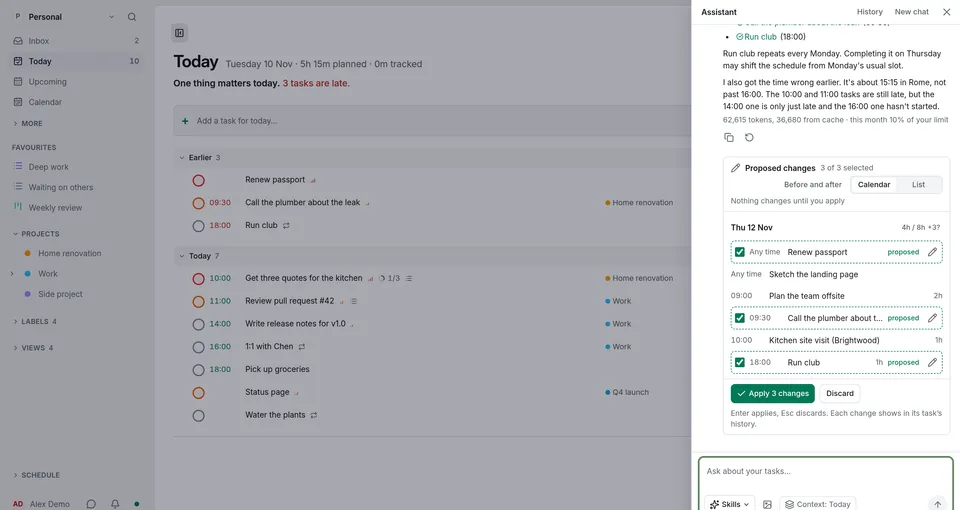
Today in OpenTodo with the assistant panel open on the right. Under the request to move three overdue tasks to Thursday, Proposed changes shows Thursday 12 November as a day: Renew passport, Call the plumber about the leak at 09:30 and Run club at 18:00 are marked proposed with a checkbox and a pencil each, between the tasks already on that day, above the buttons Apply 3 changes and Discard.

An assistant that changes your tasks on its own is hard to trust: you find out what it did afterwards. One that only talks leaves the moving to you. From version 1.4, OpenTodo’s assistant takes the middle way: it reads, shows and proposes, and you decide.

Ask, and see the tasks themselves

Press Shift+I, or select Ask on Today, and type a question the way you would ask a person. The tray under the box says what it carries along, such as Context: Today. Ask, review and undo

Where it saves reading, the answer shows the app’s own view instead of a paragraph, such as tasks as rows you can tick off. The views are read from your device, so they stay current and work offline. Answers that show your tasks
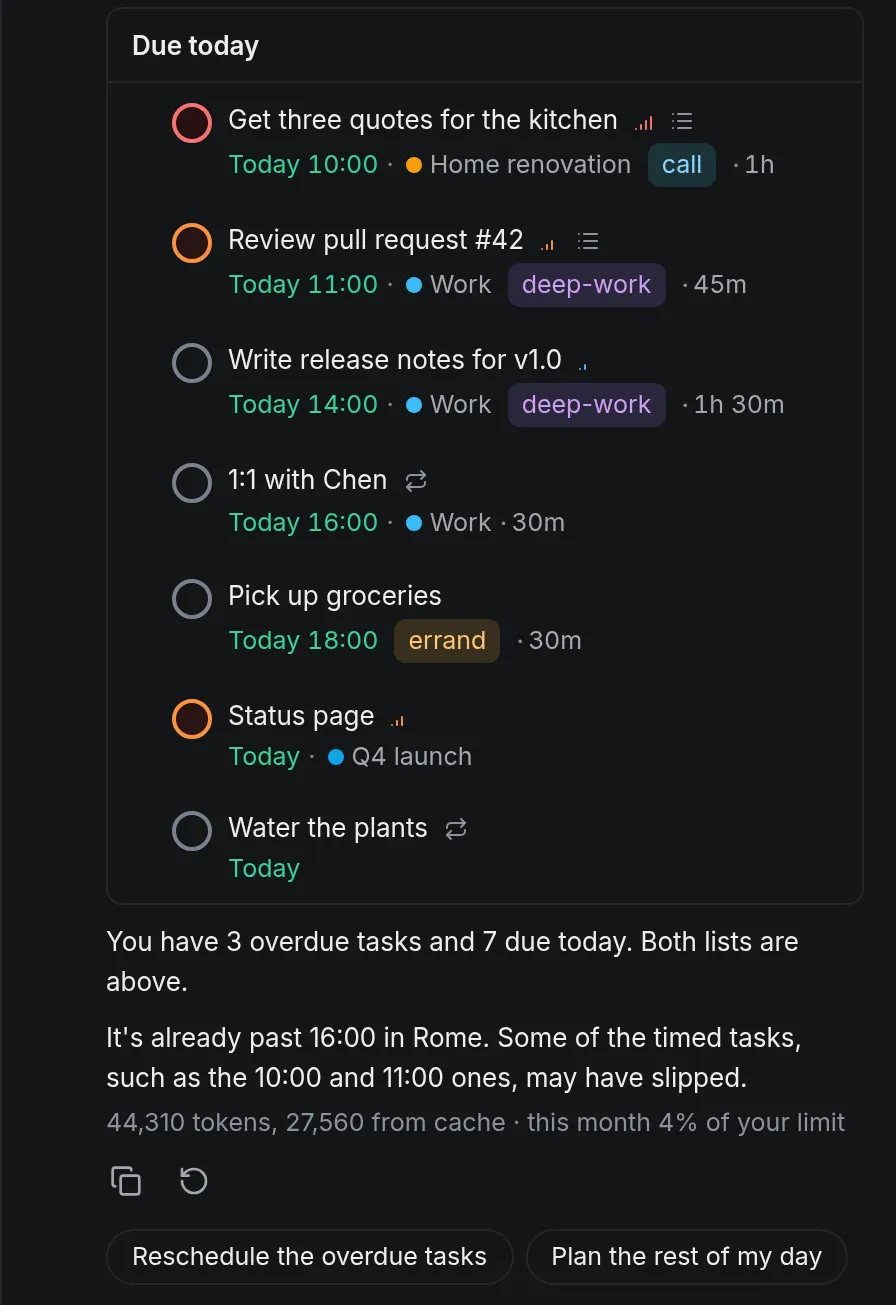
The assistant panel in the dark theme answering What’s overdue, and what’s still on for today? A block headed Due today lists seven tasks as rows with checkboxes, times, projects, labels and estimates, such as Get three quotes for the kitchen at 10:00 in Home renovation and Pick up groceries at 18:00. Below, the answer says there are 3 overdue tasks and 7 due today, the token count, and two suggested next steps: Reschedule the overdue tasks and Plan the rest of my day.

The latest answer may end with up to three next steps, such as Reschedule the overdue tasks; selecting one sends it as your message. Suggested next steps

What it can show

An answer can hold up to four of these views, and each one is read-only apart from ticking a task. The model picks the view that fits; under each picture is the kind of question that brings it. What answers can show
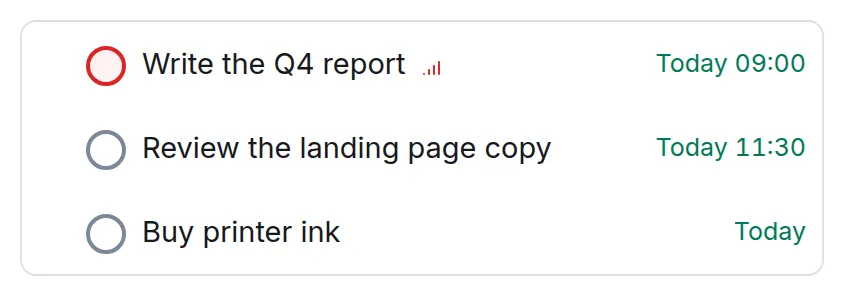
Three tasks as rows with checkboxes: Write the Q4 report today at 09:00, Review the landing page copy today at 11:30 and Buy printer ink today.

Tasks: "What's left for today?"

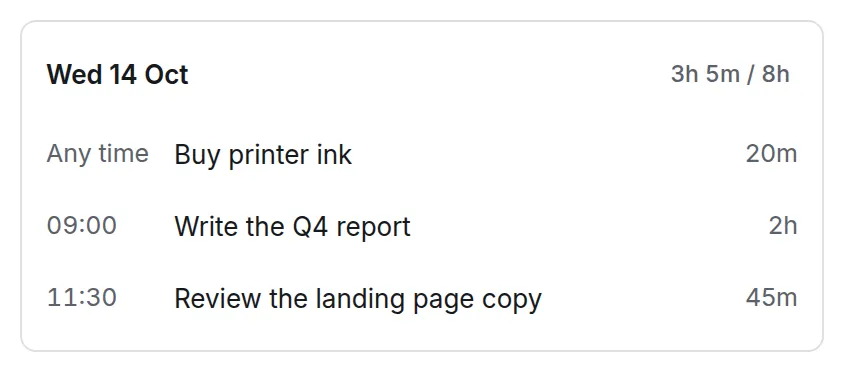
Wednesday 14 October as a day, 3h 5m planned of 8h: Buy printer ink at any time, Write the Q4 report at 09:00 for 2h and Review the landing page copy at 11:30 for 45m.

A day or a week: "Plan my day."

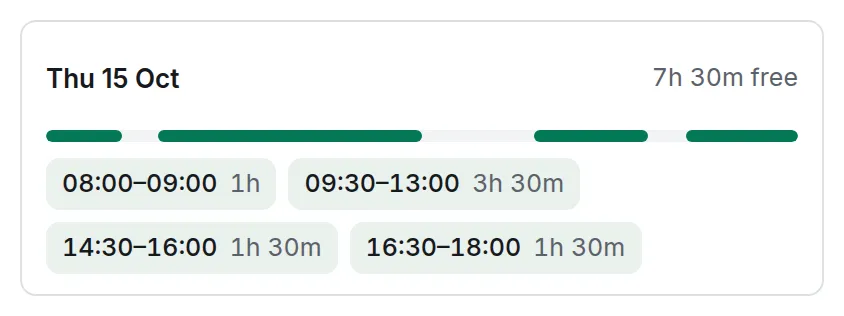
Free time on Thursday 15 October, 7h 30m in all: a bar of the working day and the stretches 08:00 to 09:00, 09:30 to 13:00, 14:30 to 16:00 and 16:30 to 18:00.

Free time: "When am I free for two hours tomorrow?"

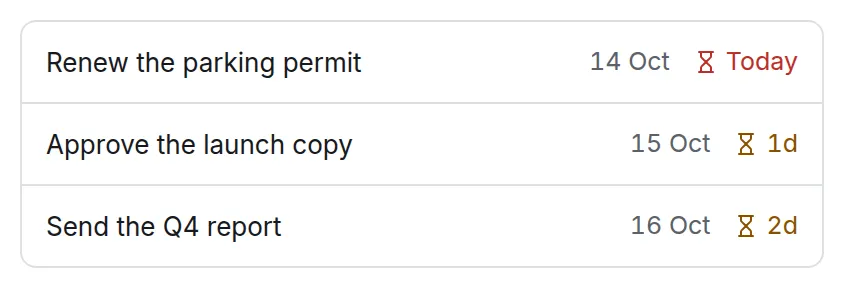
Deadlines in date order with their countdowns: Renew the parking permit today, Approve the launch copy in 1 day and Send the Q4 report in 2 days.

Deadlines: "What's due before Friday?"

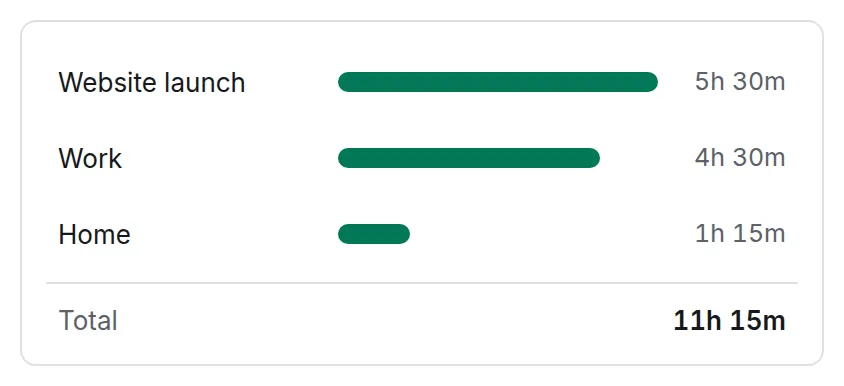
Tracked time as bars per project: Website launch 5h 30m, Work 4h 30m and Home 1h 15m, 11h 15m in total.

Tracked time: "Where did my time go this week?"

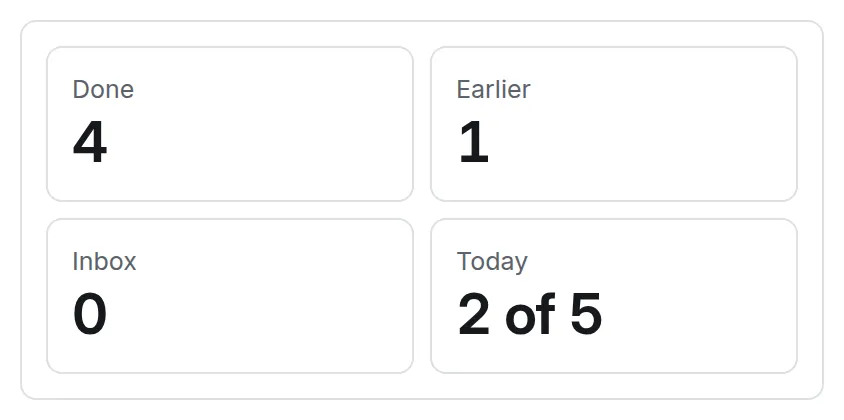
Four tiles: Done 4, Earlier 1, Inbox 0 and Today 2 of 5.

Statistics: "How am I doing?"

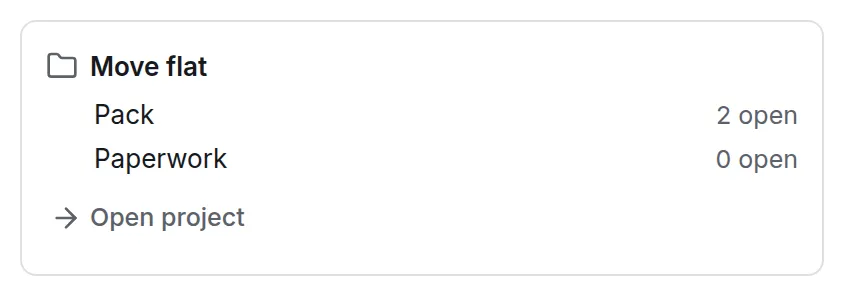
The outline of the project Move flat: the sections Pack with 2 open tasks and Paperwork with none, and Open project.

A project's outline: "Where am I with the move?"

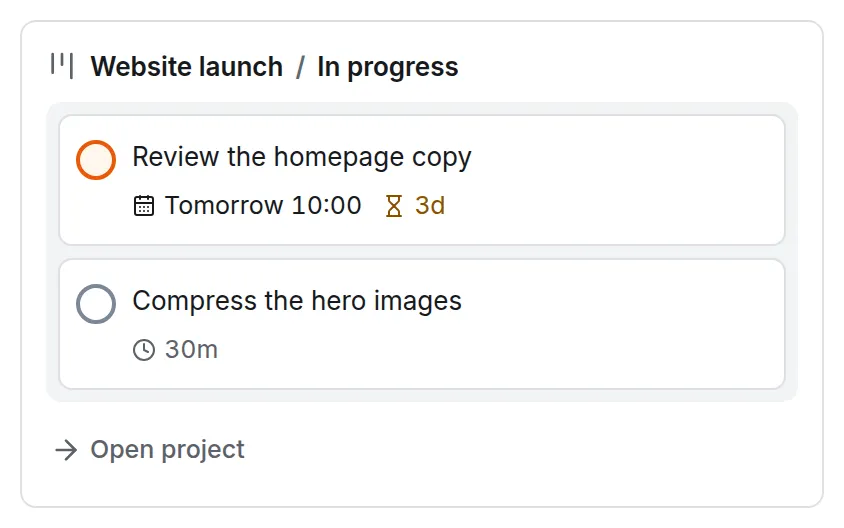
The In progress column of the Website launch board: Review the homepage copy, tomorrow at 10:00 with a deadline in 3 days, and Compress the hero images, 30 minutes.

A board column: "What's in progress on the website?"

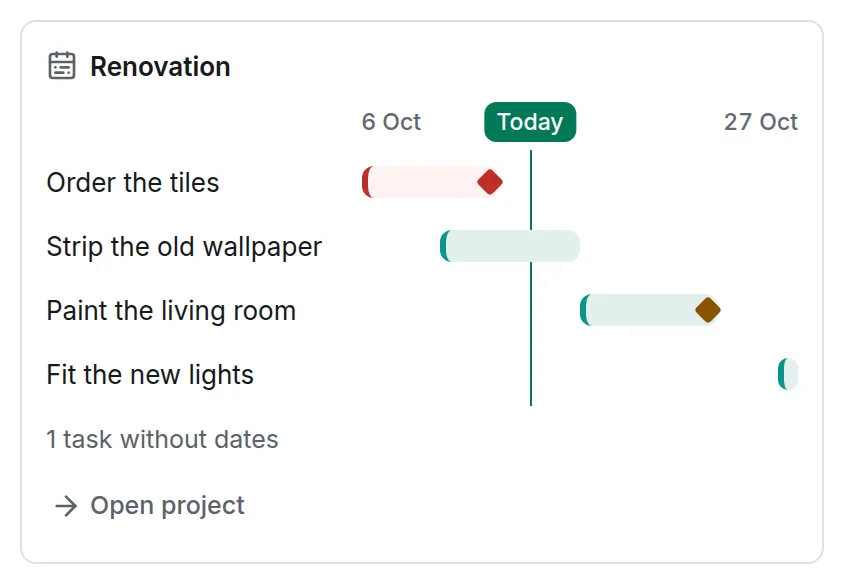
The Renovation timeline from 6 to 27 October with today marked: bars for Order the tiles, Strip the old wallpaper, Paint the living room and Fit the new lights, and 1 task without dates.

A timeline: "Is the renovation on track?"

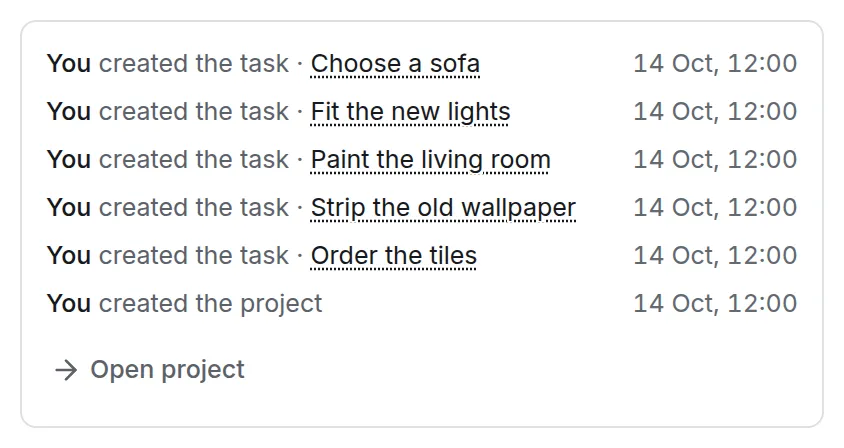
The latest changes on a project: You created the tasks Choose a sofa, Fit the new lights, Paint the living room, Strip the old wallpaper and Order the tiles, and the project, each at 14 Oct 12:00.

Latest activity: "What happened on the renovation?"

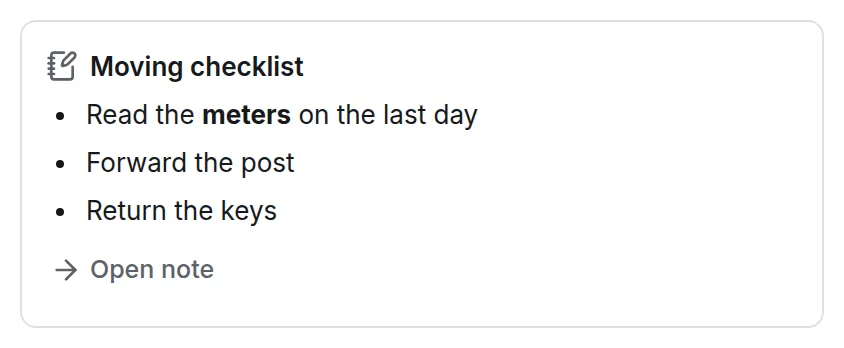
The note Moving checklist: Read the meters on the last day, Forward the post, Return the keys, and Open note.

A note: "What's in my moving checklist?"

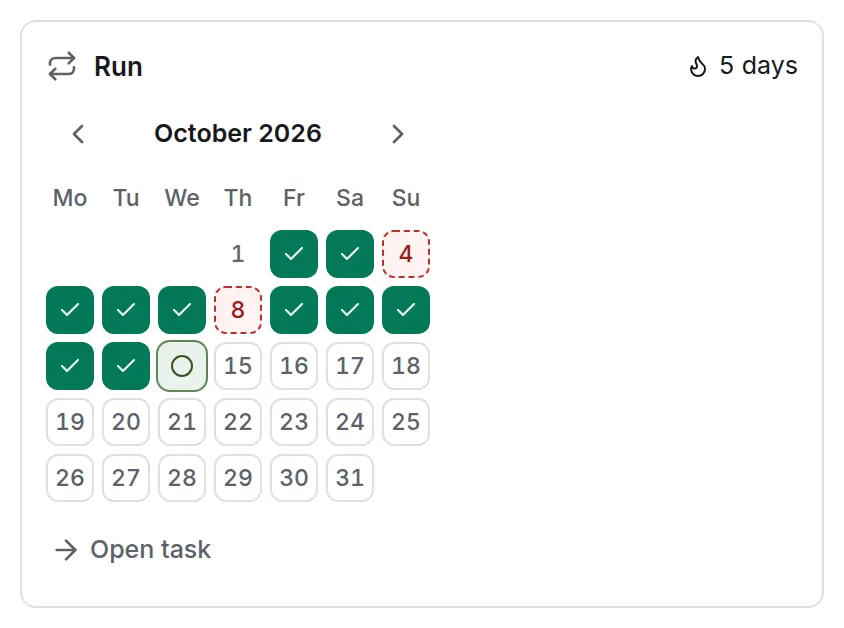
The habit Run with a 5-day streak: October 2026 as a month grid with ticks on the days it was done and two missed days marked.

A habit: "How is running going?"

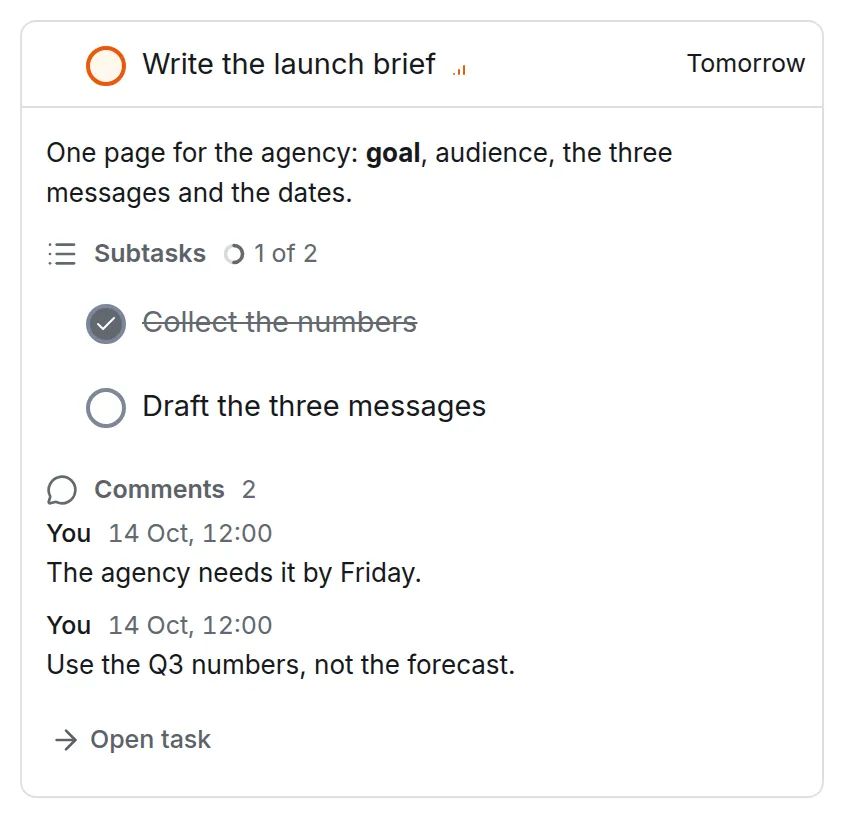
The task Write the launch brief, due tomorrow, in full: its description, the subtasks Collect the numbers (done) and Draft the three messages, and two comments.

A task in full: "Show me the launch brief."

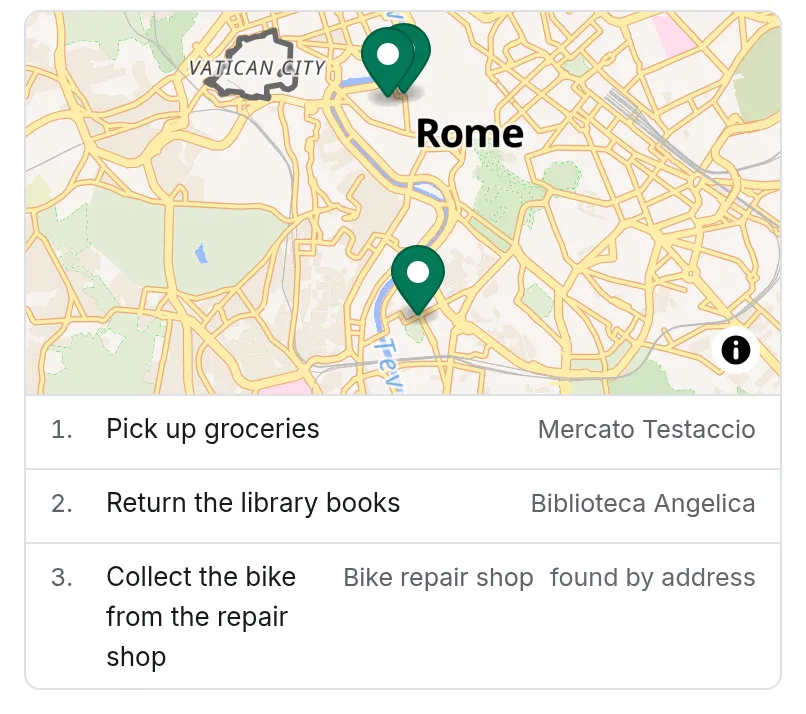
A map of central Rome with three pins and a numbered list under it: 1 Pick up groceries at Mercato Testaccio, 2 Return the library books at Biblioteca Angelica, 3 Collect the bike from the repair shop at Bike repair shop, marked found by address.

Places: "Which errands can I do on one walk?"

Errands with a place show on a map, with the same items as a numbered list. A place that has an address but no point on the map is looked up through your server’s address search and marked found by address; nothing is saved to the task. When there is no map, the block says why above its list: maps are off, nothing could be found by address, or the browser cannot draw maps. Maps can be turned off by you in Settings → General → Maps or by the owner for everyone. Maps and privacy

A proposal you can shape

Ask for a change and nothing changes. The answer ends with Proposed changes, drawn in the shape of what it touches: moves within one week as a calendar, a new project as an outline, places on a map, with List one switch away. Shape a proposal

Every item has a pencil for its title, dates, time and priority. In the video below the assistant kept the plumber call at 09:30, but the account’s memory says calls go after 14:00, so I changed the time. The item is marked edited, and what you entered is what applies. In the calendar you can also drag an item to another day, or use Alt+↑ and Alt+↓. Edit an item
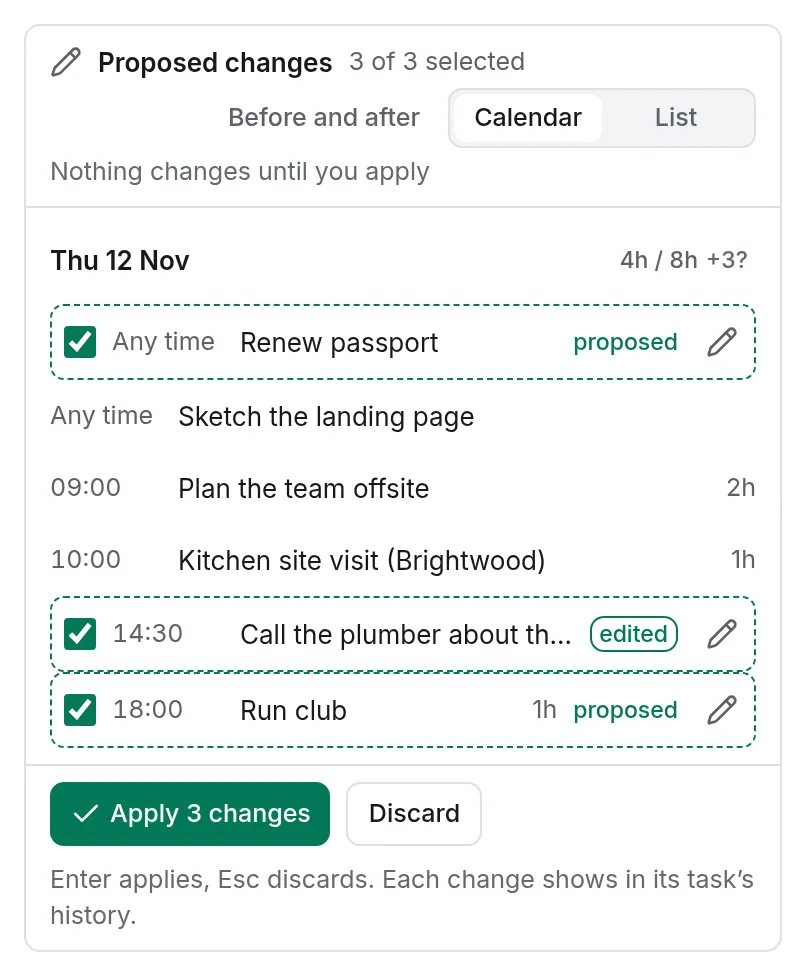
Proposed changes in the light theme for Thursday 12 November. Renew passport and Run club are marked proposed; Call the plumber about the leak now reads 14:30 and is marked edited. Tasks already on that day, such as Plan the team offsite at 09:00, sit between them without checkboxes. Below are Apply 3 changes and Discard.

While the proposal is open, your next message amends it instead of starting over, and Before and after shows each value now and as proposed. Uncheck what you do not want, then Apply. Ask for more

Ask it to give the untimed tasks of a day a time, and the proposal is that day, time-blocked around what is already fixed. Its own shape
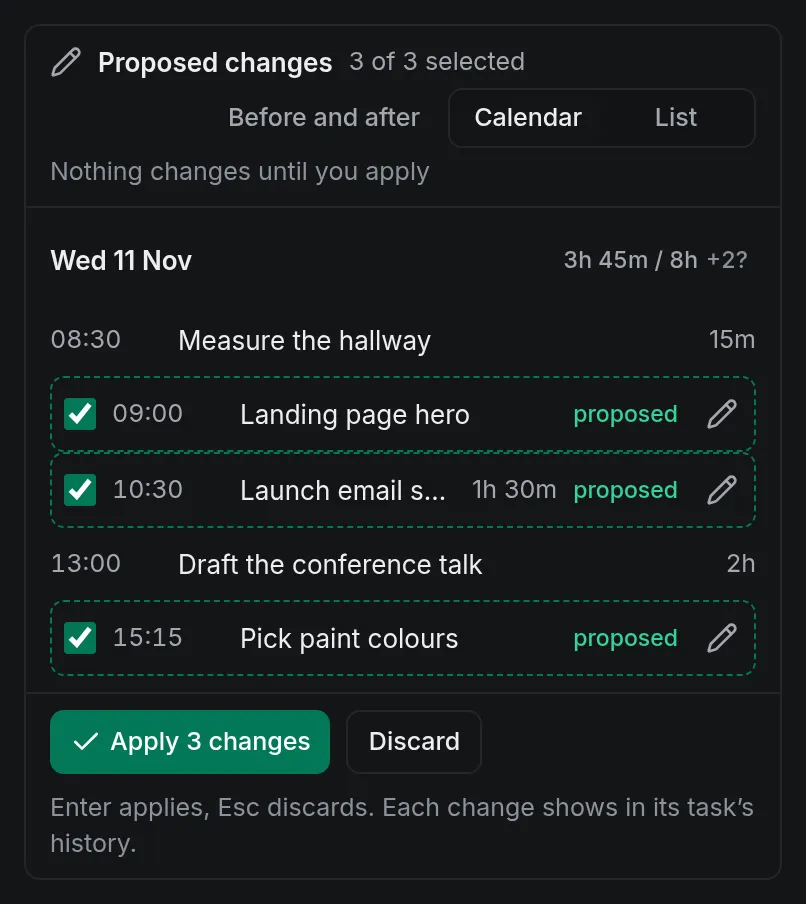
A time-blocked Wednesday in the dark theme: Proposed changes gives Landing page hero 09:00, Launch email sequence 10:30 and Pick paint colours 15:15 around Measure the hallway at 08:30 and Draft the conference talk at 13:00, which stay as they were.

Undo puts back every value the proposal changed and moves the tasks it created to the Trash, in one step, also offline. Undo

A question in Today, the answer as task rows, a request to move three overdue tasks to Thursday, the proposal as Thursday's calendar, the plumber call moved to 14:30 with the pencil, Apply and Undo. About a minute, no sound, the waits for the model sped up, recorded on a local instance of OpenTodo ahead of 1.4 with Claude Sonnet 5.5.

Where you already are

Some jobs start from their subject. A task’s ⋯ menu has Rewrite this, Find a slot (a time in your free hours over the next seven days that fits its estimate) and Break this down; a project’s has What’s next?; Today’s has Brief me: the agenda, the deadlines and how you are doing. What’s next? and Brief me change nothing. The assistant where you work
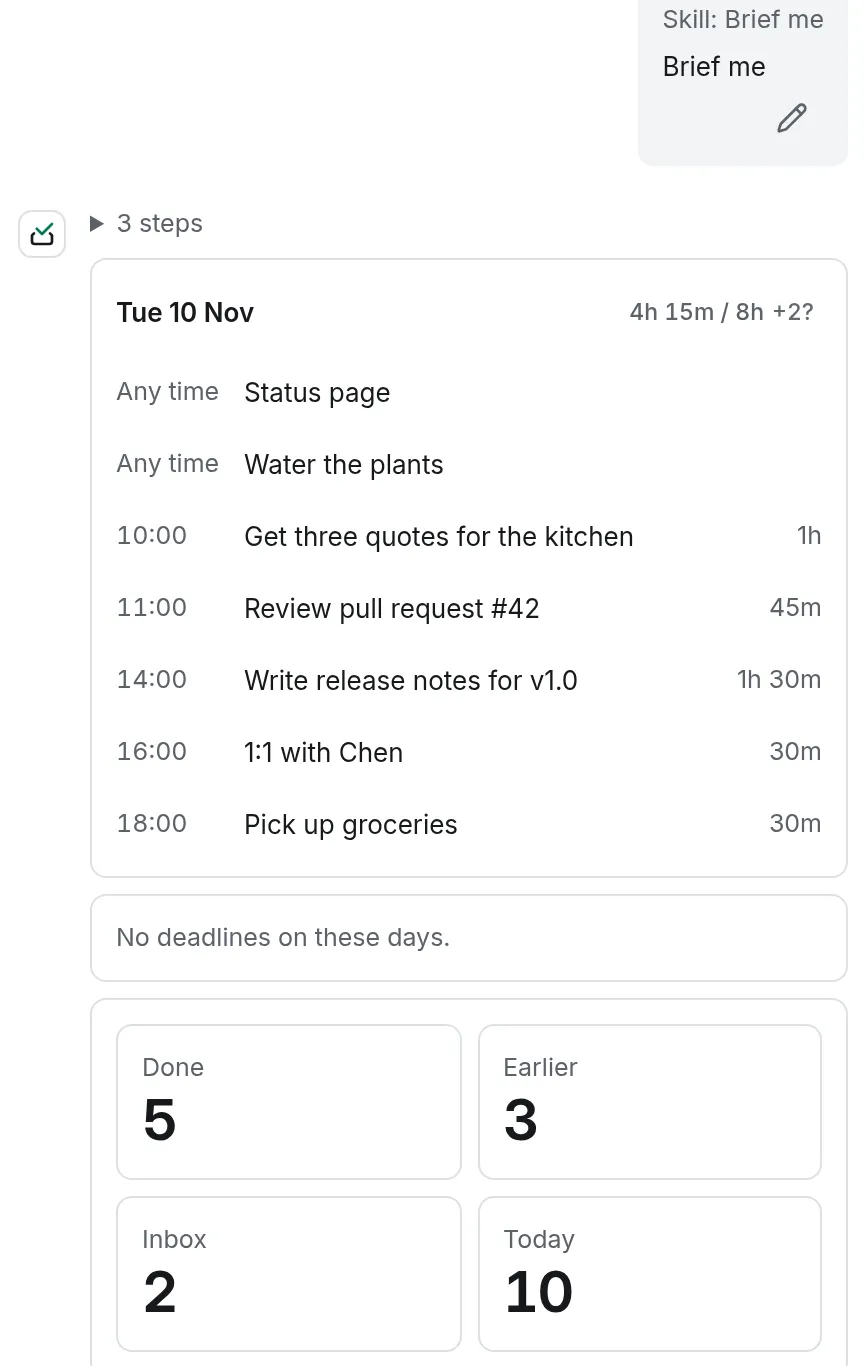
The answer to Brief me in the light theme, under the message marked Skill: Brief me: Tuesday 10 November as a day with its tasks and times, from Get three quotes for the kitchen at 10:00 to Pick up groceries at 18:00 and 4h 15m planned of 8h, the line No deadlines on these days, and tiles for Done 5, Earlier 3, Inbox 2 and Today 10.

A routine’s Ask AI step can show the same blocks: a Morning briefing puts the day’s agenda and the tasks to start with under its line in the Inbox card. The run keeps only which tasks and days, never text. AI steps

What it remembers

Memory holds short facts that the assistant keeps to, such as “Works Monday to Thursday”: at most 20 lines, in Settings → Integrations → Assistant → Memory. The assistant can propose one when you state a fact, but it exists only after you apply it. Nothing is remembered silently. What the assistant remembers
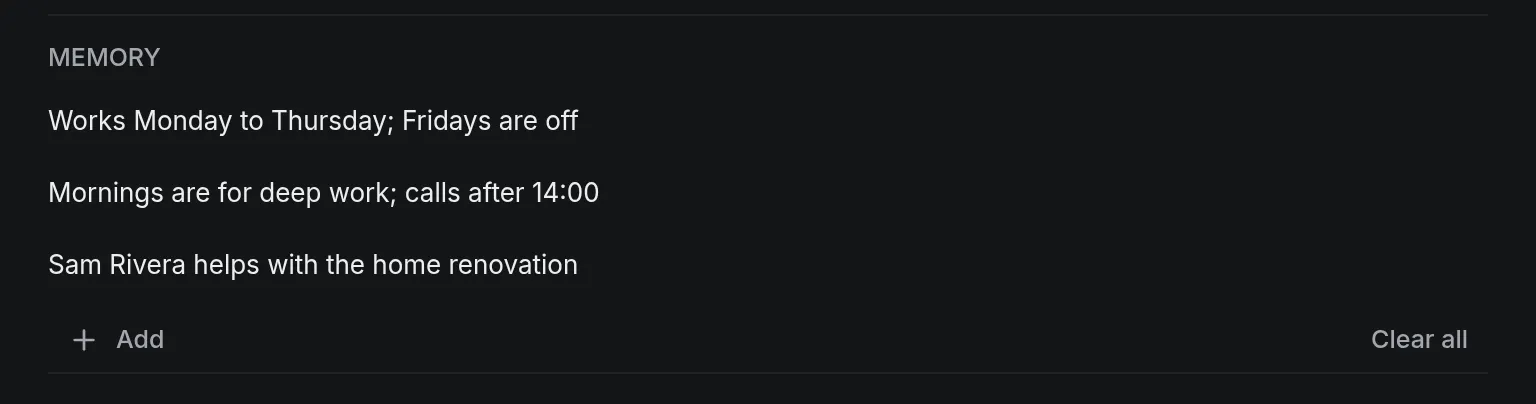
The Memory list in Settings in the dark theme with three lines: Works Monday to Thursday; Fridays are off, Mornings are for deep work; calls after 14:00, and Sam Rivera helps with the home renovation, with Add and Clear all below.

What is sent, and where it stays

Before your first message the panel names the provider and model and what may be sent: tasks, comments, notes, tracked time, project and label names, the names of people you share with, your memory and your messages. Nothing goes out until you select Accept and continue. In a shared project that includes text other members wrote. Before your first message

Conversations live only in your browser, never synced or backed up, and the server keeps nothing of a turn after it answered. Conversations stay on this device

Memory goes to the provider with every message, and nowhere else: MCP clients, API tokens, routines’ AI steps and other people never receive it. It syncs to your devices and is end-to-end encrypted on an encrypted account. Never to anyone else

On an encrypted account the server never runs the assistant. If the owner allows it, it runs on your device with your own key, and the server sees only that you agreed. End-to-end encrypted accounts

The owner chooses the model: Anthropic, OpenAI, Google Gemini or any server with the OpenAI-compatible format, such as Ollama or LM Studio on a machine at home. It must support tool use; for the multi-step skills, choose 7B or more. A local model

A few ways to use it

These are general tips rather than a routine of mine; take the ones that fit.

  • Read before you ask for changes. A question that only reads sends fewer tool definitions to the model, so it costs less. Ask and review
  • Put your rules in memory. “Calls after 14:00” once, instead of in every request. What the assistant remembers
  • Read the proposal. In my recording the model misread the clock once and corrected itself in its next answer. The review is there for that. Safety

What it does not do

  • It never applies a change by itself, unless you turn on Small changes without review: off by default, and limited to completion, dates, priority or labels of at most three tasks. Small changes without review
  • It cannot change sharing, members, settings or tokens, delete anything permanently, browse the web or send messages. Safety
  • It is off until the owner of your server turns it on, and off on the public demo. AI assistant

Try it

The assistant comes with OpenTodo 1.4. The owner sets it up in Settings → Integrations → Assistant (Set up the assistant); then press Shift+I. Assistants like Claude Desktop that connect over MCP can show the same task blocks too. Blocks in the assistant’s answer

Raffaele Pizzari

Builds OpenTodo in the open: one container, your own server, every feature specified before it is built. More about Raffaele

  1. A Today that stops

    Nine tasks for one day is a list you stop reading. Give Today a limit and it holds five, in the order they came, with the rest folded away until you finish one.

    News
  2. Chores that come back on their own

    Bins on Tuesday, plants every few days, rent on the 1st. Write each chore once with a repeat rule, tick it when it's done, and OpenTodo puts it back on its next date.

    News
  3. Write it the way you'd say it

    Quick add reads "Call Sarah next Wednesday at 3pm #work @call +30m" and fills in the date, time, project, label and estimate. Paste six lines and you get six tasks, with one Undo for all of them.

    News

Follow along.

RSS feed

OpenTodo is free and always will be. If it helps you: star it, buy a coffee, sponsor or see how else to help.