
Restore something you deleted
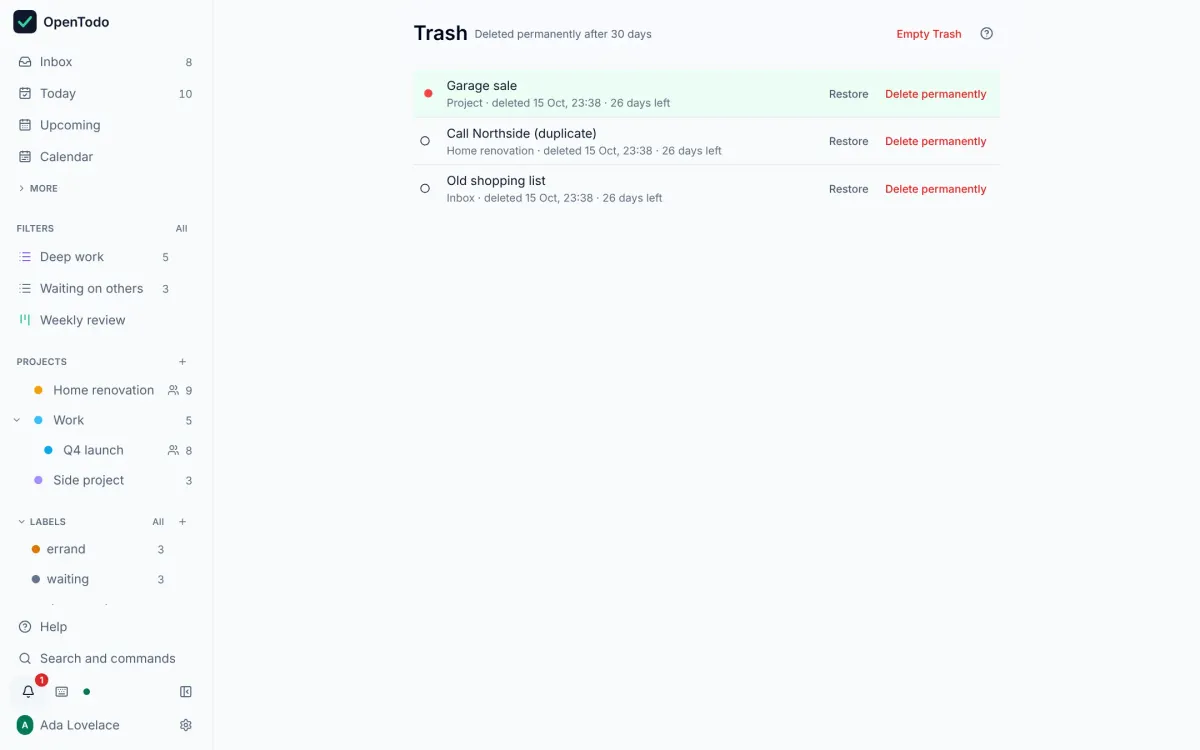
Deleted tasks and projects wait in the Trash for 30 days, and every change to a task is kept in its history. Nothing is gone by a slip of the finger.
About 1 minute · For everyone who uses the app · Last reviewed
What you need
- Nothing. Restoring from the Trash works offline too.
Steps
- Open Trash in the sidebar, or press g then x. Deleted tasks and projects are listed newest first, with how many days they have left. Restore something from the Trash
- Select Restore next to the item (with the keyboard: j / k to select, r to restore). A task returns to its project; a project returns to its place with all its tasks. Restore something from the Trash
An edit rather than a deletion?
- Open the task and select the History tab. Changes are grouped into versions, newest first, with who made each and from where. See what changed on a task
- Next to a change, select Restore this value; or Restore this version to put back everything that version changed. Restoring is itself a change, so you can undo the undo. Bring back an earlier value
Good to know
- Items are deleted for good after 30 days in the Trash, or when you choose Delete permanently or Empty Trash. Your server’s owner can change that period. Delete for good
- An archived project is not in the Trash: bring it back from Settings → Projects → Archived projects. Bring back an archived project
- History is loaded from your server, so it needs a connection. See what changed on a task