
Turn on scheduled backups
A daily snapshot to a folder, S3-compatible storage or WebDAV, with retention and optional encryption. Set it once; it then runs on its own.
About 5 minutes · For the person who runs the server · Last reviewed
What you need
- To be the owner of the server. Backups
- Somewhere for the copies to go. A folder on the server is better than nothing but is on the same disk; S3 or WebDAV gets them off it. Destinations
Steps
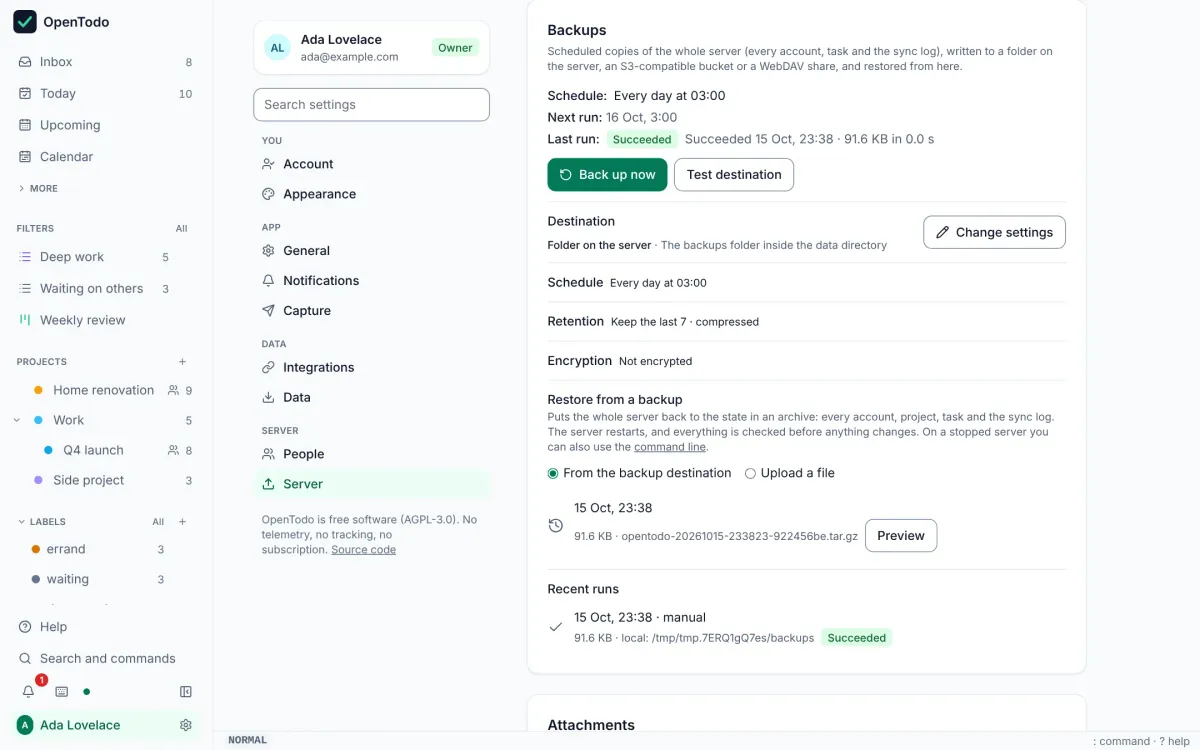
- Sign in as the owner and open Settings → Backups. The top of the page shows the schedule, the next run and the last run with its outcome. Quick start
- Select Change settings and pick a destination: Folder on the server, S3-compatible storage (AWS, Backblaze B2, Cloudflare R2, Wasabi, MinIO and others) or WebDAV (Nextcloud, a NAS). Destinations
- Choose a schedule, for example daily at 03:00, and how many backups to keep (7 by default). Schedule and retention
- Optionally set a passphrase to encrypt the archives. A forgotten passphrase cannot be recovered, so store it in a password manager. Encryption and secrets
- Save backup settings, then Test destination and Back up now. The status shows the run and its outcome, and each run is listed under Recent runs. Quick start
Good to know
- If the server was off when a backup was due, one runs shortly after it starts again. Schedule and retention
- Restoring replaces the whole database and runs with the server stopped, from the same binary; the docs give the exact commands for Docker Compose. Try it once on a spare machine, so the day you need it is not the first time. Restore
- The passphrase and destination credentials are stored only in a secrets file on the server and never included in an archive. Encryption and secrets