
Set a reminder
Get a nudge at the due time, an hour before, a day before, or at a moment of your choosing, on every device.
About 1 minute · For everyone who uses the app · Last reviewed
What you need
- A task with a due date, if you want a reminder relative to it. A reminder at a fixed moment works on any task.
Steps
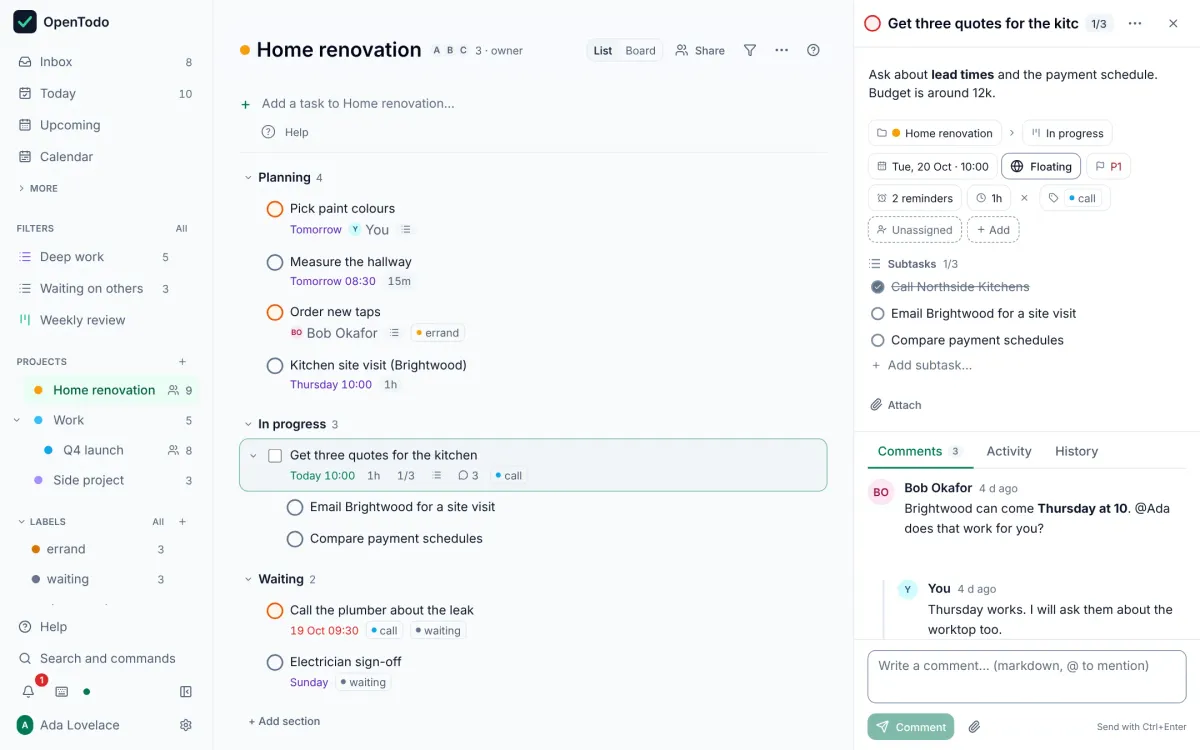
- Open the task and select + Add reminder under Reminders. Add a reminder
- Pick At due time, 10 minutes before, 30 minutes before, 1 hour before or 1 day before; or Custom offset… for any number of minutes, hours or days; or At a specific date and time… for a fixed moment. Add a reminder
- Add more if you like: a task can have several reminders. They move with the due date, and on a repeating task they carry over to the next occurrence. Add a reminder
When it goes off
- While OpenTodo is open, a reminder pops up in the corner with Snooze 10 min, 1 hour, Tomorrow 09:00 and Dismiss. No permission or connection needed. When a reminder goes off
- To get it while the app is closed, turn on notifications for each device in Settings → Notifications. Snoozing on one device applies to all of them. Get reminders when the app is closed
Good to know
- A task with a date but no time counts as 09:00 for “before” and “after”. Give it a time if you need the reminder earlier. Tips
- Reminders are personal: on a shared task, yours are yours alone. Shared projects
If it does not work
- Nothing arrives on your phone while the app is closed: follow reminders on your phone, which walks through the delivery check. Notifications