
Secure your account with a passkey or two-factor authentication
Sign in with your fingerprint or face, add a second lock with a code from your phone, and keep the recovery codes somewhere safe.
About 3 minutes · For everyone who uses the app · Last reviewed
What you need
- A connection to your server; these settings are read-only offline. Account security
- For passkeys, a server on an
https://address. If Settings has no Security section, that is why; ask whoever runs your server. Sign in with a passkey
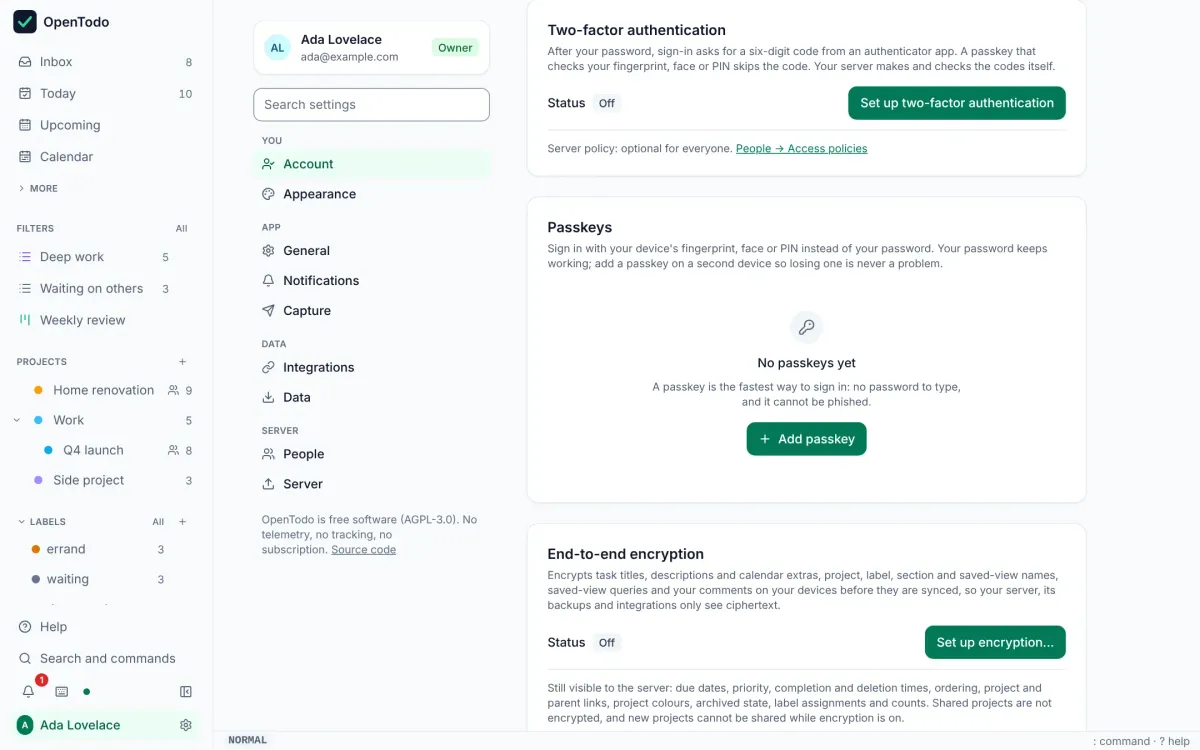
Add a passkey
- Open Settings → Security and find the Passkeys card. Sign in with a passkey
- Select Add passkey and give it a name you will recognise, like “Work laptop”. Sign in with a passkey
- Confirm with your fingerprint, face or PIN when the device asks. Next time, choose Sign in with a passkey on the sign-in screen. Sign in with a passkey
- Add a passkey on a second device too, so losing one is not a problem. Your password keeps working as a fallback. Sign in with a passkey
Turn on two-factor authentication
- Open Settings → Security → Two-factor authentication and select Set up two-factor authentication. Turn on two-factor authentication
- Scan the QR code with any authenticator app that supports time-based codes, or type the key shown under it, then enter the six-digit code the app shows. Turn on two-factor authentication
- Save the recovery codes that appear. They are shown only once; each works once in place of a code if you lose your phone. Recovery codes
Good to know
- Signing in with a passkey skips the two-factor code, because the passkey already checks it is you. Turn on two-factor authentication
- Tick Remember this device for 30 days on a browser you trust so it does not ask every time. Remember this browser
- If you lose both your phone and your recovery codes, the owner of your server can reset your two-factor authentication. Recovery codes