
Turn a project into a board
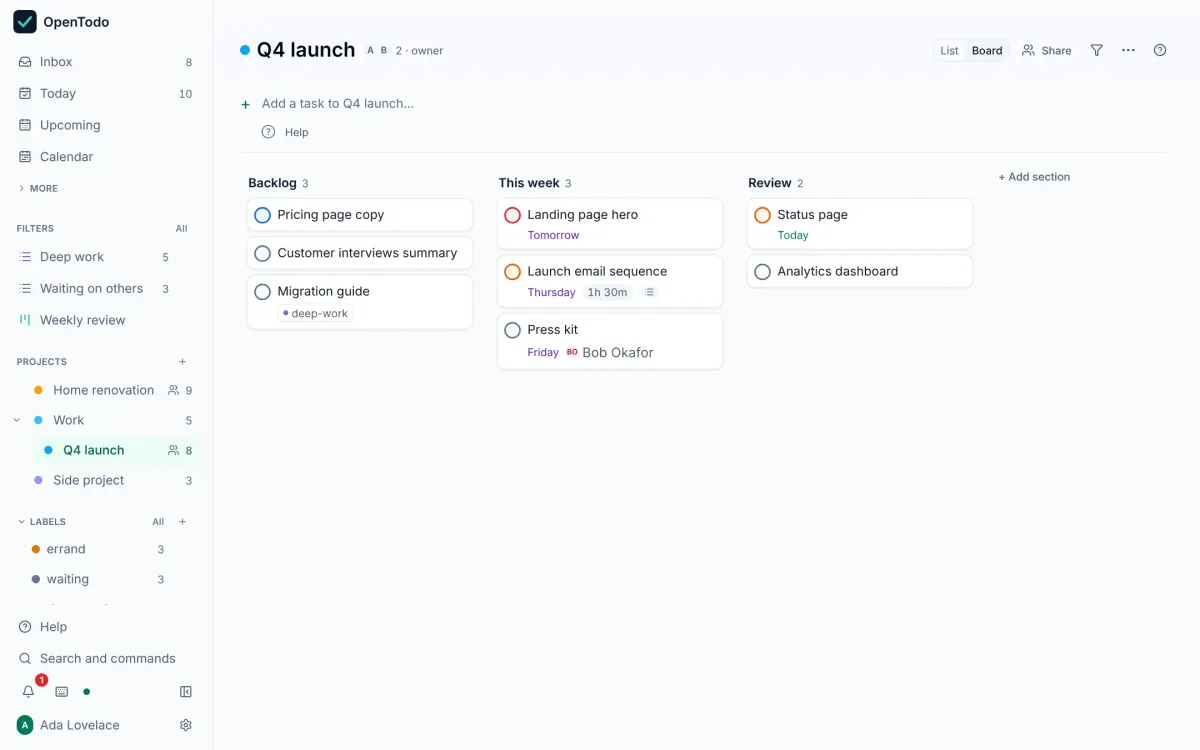
Split a project into sections, then show it as columns you can drag cards between. Each device remembers its own choice.
About 3 minutes · For everyone who uses the app · Last reviewed
What you need
- A project with a handful of tasks.
Steps
- Open the project and select + Add section at the bottom of the list. Type a name, such as
To do, press Enter, and add the next:Doing,Done. Add a section - Put tasks into sections: select the + on a section heading and type, or open a task and choose a Section in its panel. Tasks without a section are listed first under No section. Add tasks to a section
- At the top of the project choose Board, or press v. Each section becomes a column. Press v again to go back to the list. Switch to a board
- Move a card by dragging it to another column (press and hold first on a touch screen), or select it and press Shift+→ or Shift+←. Move cards between columns
Good to know
- The list-or-board choice is remembered per project on each device: your laptop can show a launch as a board while your phone shows it as a list. Switch to a board
- Deleting a section does not delete its tasks; they move to No section. Rename, reorder or delete a section
- Sections by place (Kitchen, Bathroom, Garden) or by week (This week, Next week, Later) work as well as a flow. Ideas for sections