
OpenTodo 1.4.0 is out, with 1.4.1 right behind it on the same day. It is the release of notes and the assistant. Notes stop being a page you find under More and become half of the app; the assistant learns to answer with your tasks instead of paragraphs about them. Here is what changed.
Notes have a side of their own
A Tasks | Notes control under the workspace name switches the sidebar to your notes: All notes, your pinned notes and the ones you changed last. Opening a note shows that side, opening a task shows Tasks again, and g e still opens Notes. See Tasks and Notes in the sidebar.
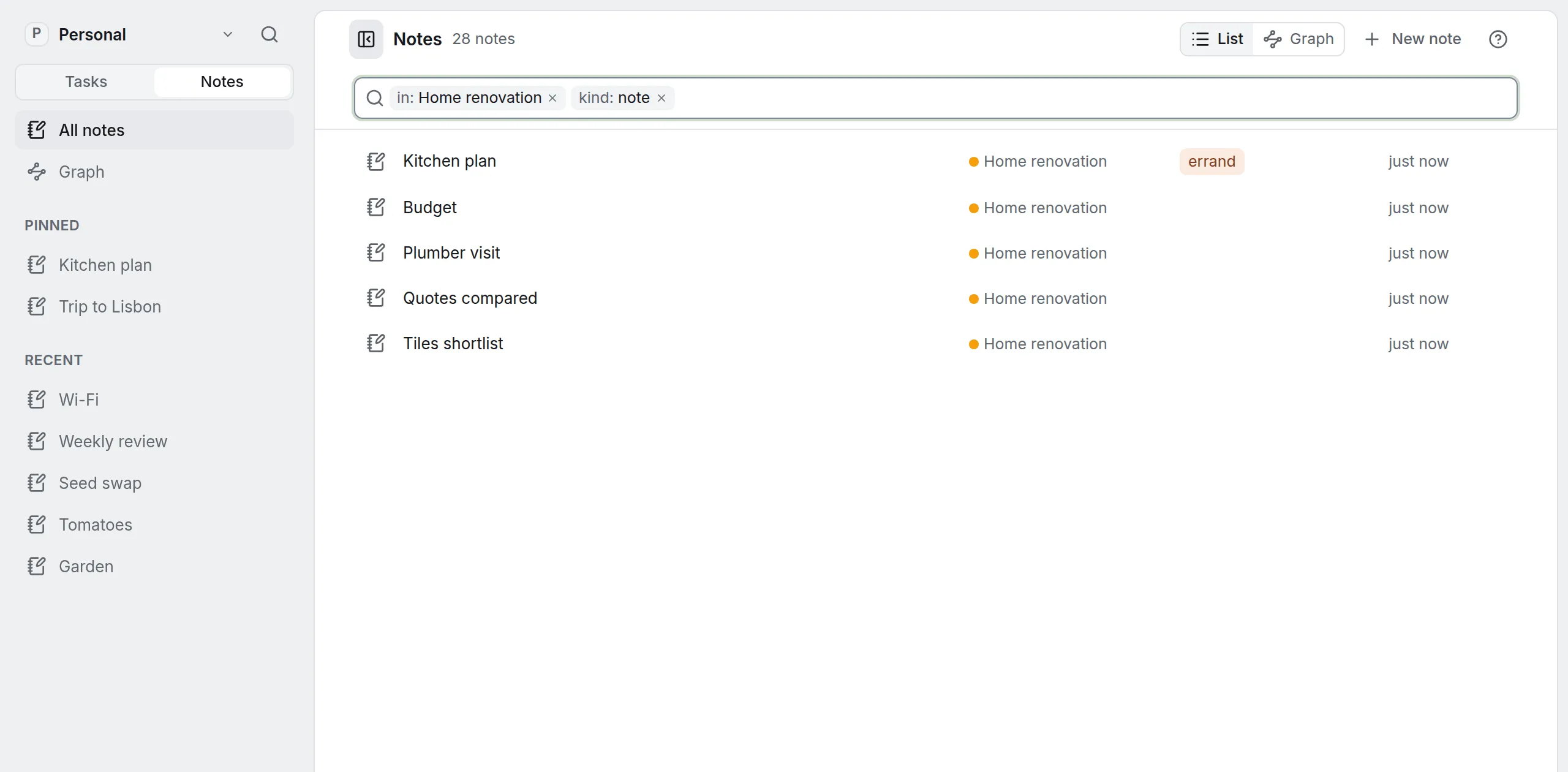
The Notes page is one line per note: its kind, title, project, labels and when it last changed. Pinned notes come first, the rest under Recent. A standalone note gets a project and labels below its text, and there are no folders: projects and labels organise notes. See The list and Writing a note.
The search field takes tokens that turn into chips: in:Renovation, @errand, kind:note, linked:Trip, orphan for the notes nothing links to, pinned, and changed:<7d. They replace the old Source, Project and Label filters. When nothing matches what you typed, Enter creates a note with that title, in the project of an in: chip. See Narrow notes with tokens and Start a note from the search field.
Links, and what links back
Type [[ in any note, a task’s, a project’s or a standalone one, and pick a note, task or project, or create a new note on the spot. A link always shows the current title, so renaming never breaks it. At the end of a note, Linked references lists every note that links there, with the line around the link. See Link notes, tasks and projects and Linked references.
Show connections, in the menu of anything with a link, draws one item in the middle, what it links with on an inner ring and their links on an outer ring, and works from the keyboard. See See an item’s connections.
Links are stored as plain Markdown, so older apps keep them, and they are worked out on your device: offline, and with end-to-end encryption the server never learns which notes link where. See Links in Markdown.
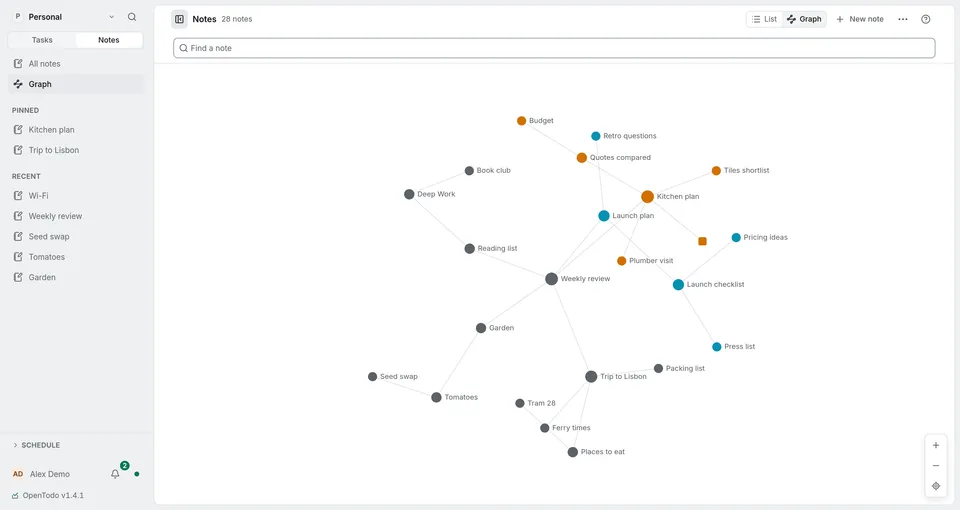
The graph of all notes
The Notes page has a second mode, Graph: every note of the workspace and the tasks and projects they link to, as one picture that fills the page. Pan and zoom, point at a note to light its neighbours, click it to open it beside the graph, and double-click to centre it with a depth of one to three links. Find a note moves to a note by its title, and the search field’s chips dim everything outside a topic without moving anything. See See all your notes as a graph.
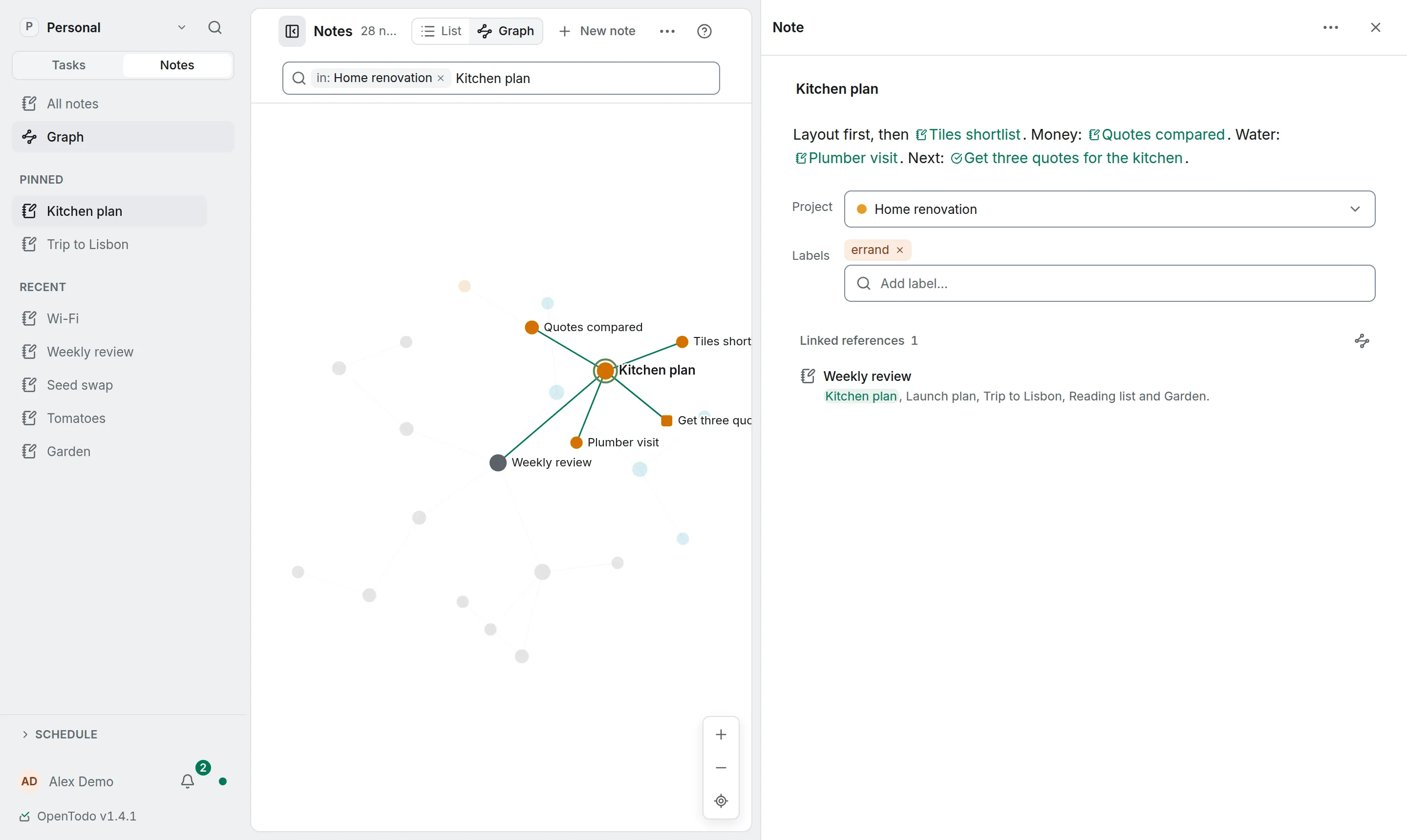
The layout is the same every time and kept on the device, so a new note appears beside its links while everything else stays put. The List is its equivalent for screen readers. See Private and offline.
The assistant
The assistant now answers with the app’s own views: tasks as rows you can tick off, a planned day, a board column, a map. You can edit a proposal before you apply it, it remembers short facts you tell it, it is one click away in the menus where you work, routines’ AI steps show the same blocks, and Claude, ChatGPT and VS Code can show your tasks the way OpenTodo draws them through MCP Apps. A question that only reads costs about a third less. See Answers that show your tasks and Blocks in the assistant’s answer.
That deserves more than a paragraph: An assistant that asks first has the full tour.
Also new
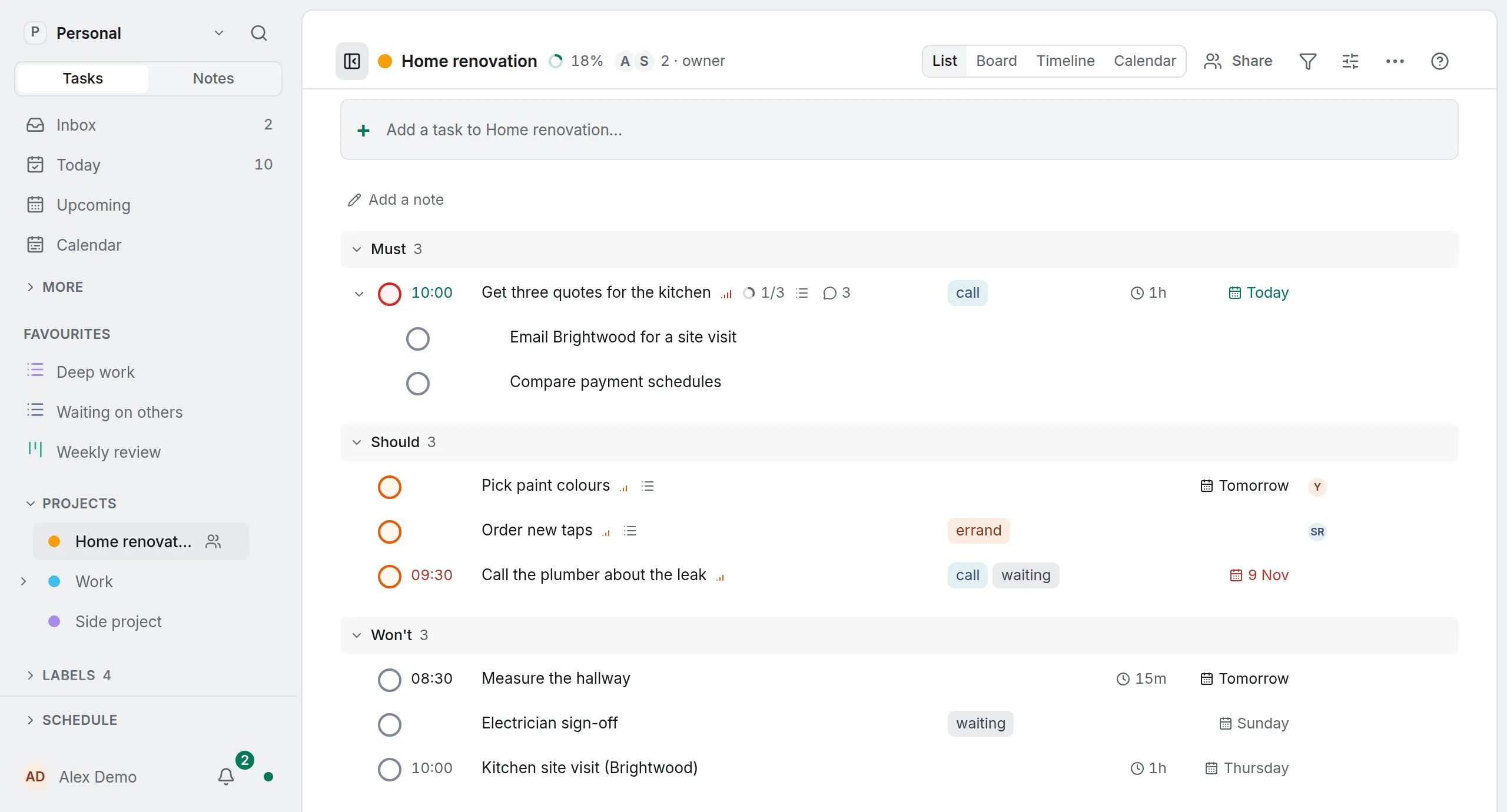
- Name your priorities. Settings → General → Priorities gives the four levels your own words, such as Must, Should, Could and Won’t. They show wherever a priority does;
p1top4stay the syntax. See Name your priorities. - Order by urgency. Display options → Order by → Urgency puts what needs you first, from its date, deadline, priority, the tasks waiting for it and more. Each row shows its score, and Why here? gives the breakdown. See Order by urgency.
- Progress rings. A task with subtasks shows a small ring before its count, and a project shows its progress next to its title. See Break a task into subtasks.
- Print a list. Ctrl+P on a list prints it clean, black on white, with an empty circle to tick by hand; Print… in the list’s menu does the same. See Print a list.
- Display options on Today, Upcoming and the Inbox, with grouping, order and nested subtasks. See Arrange Today, Upcoming and the Inbox.
- Calmer Focus and Close the day. Focus shows the task, its next subtask and the time left, with the rest in the ⋯ menu; Close the day is three steps and one Undo. See Focus and Close the day.
- The Loop home’s next step. A Next step card names one move and why, with one button. See How prominent it is.
The server is also ready for the sign-in of a native OpenTodo app that is coming: it signs in through your phone’s own sign-in sheet, with passwords, two-factor, passkeys and single sign-on, and shows up with your sessions in Settings. See App sign-in.
Fixes worth naming
- Completing a task in a long list is fast again. In a 2,000-task list it had become about four times slower; it is back under its budget. See Performance budgets.
- Nothing moves the list under your finger. The “n selected” bar floats over the bottom of the screen, and notices are toasts in the corner. See Bulk actions.
- The iPhone app’s widget and reminders work. The App Store and TestFlight builds kept the web app from reaching the phone; reminders, the Today widget, the share sheet and Face ID unlock now work. See The iOS app.
Upgrading
Nothing to do: the database migrates by itself, and every new value stays readable by 1.x apps. Pull the new image and restart, for example docker compose pull && docker compose up -d with the stable or 1 tag. See Updating.
1.4.1 is the same as 1.4.0 for a server. It publishes what the 1.4.0 release left out: the iPhone build for TestFlight and the App Store, and the Claude and Obsidian plugins. Upgrading from 1.4.0 is optional.
OpenTodo for iPhone and iPad is now in the App Store, as a first release: it connects to your server and adds reminders on the phone, the share sheet, a Today widget and Face ID unlock. On Android, the app is available from the release page on GitHub for now; Google Play and F-Droid are on the way. See Install on your phone.
Thank you
Ioannis Kechagias (Kechos23) wrote two of the changes in this release: the tinted label chips, and renaming, recolouring and choosing a project’s icon from its sidebar menu. Thank you also to n3uron4, who asked for display options on Today, Upcoming and the Inbox, Siflei, whose two requests made routines work in one workspace and gave their conditions a “not”, and justinsteven, whose reports made the iPhone app’s first screen clearer and stopped the selection bar from pushing the list down.
The full list of changes is in the release notes and on GitHub.